

 |
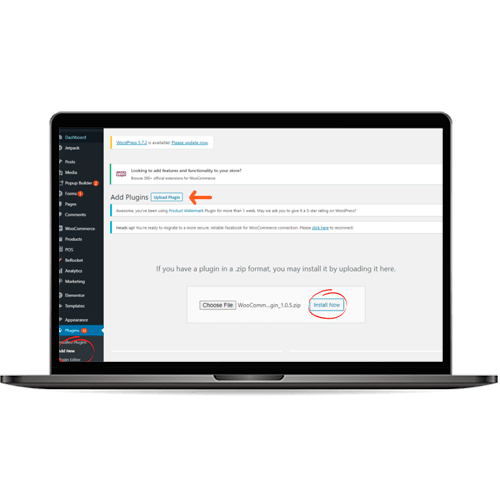
Login to your website's admin area. Go to the Apps / Plugin Menu. Upload the Zip File we sent you and Activate or Install the plugin. |
|
Important: Make sure you have the correct plugin zip file. Every shopping cart makes use of slightly different parameters. |
|
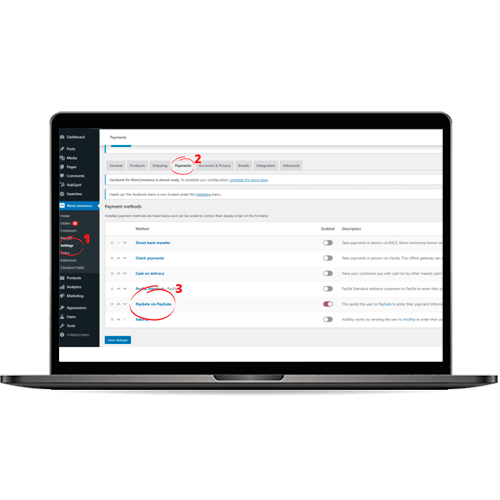
Go to your Shopping Cart Payment Settings. |
|
Enable the Gateway "PayGate via PayWeb3" and click on it to edit the 'payments' tab. Enter your PayGate ID & Encryption Key supplied to you by the WAPPoint onboarding team. |
|
If your settings are slightly different, update as needed. You can also get in touch with us to assist. |
|
Add a test product (R1) to your shop. You can disable it again after this test so just add the basic details and if possible make it a virtual product so you don't incur shipping costs on this test. |
|
View the product on your store front end/website. Add to cart and checkout. Pay with your card. |
|
If everything is set up correctly, you will be prompted for an OTP Or to verify the transaction on your banking App and once complete receive order confirmation emails. If you get any errors, contact us for support. |